
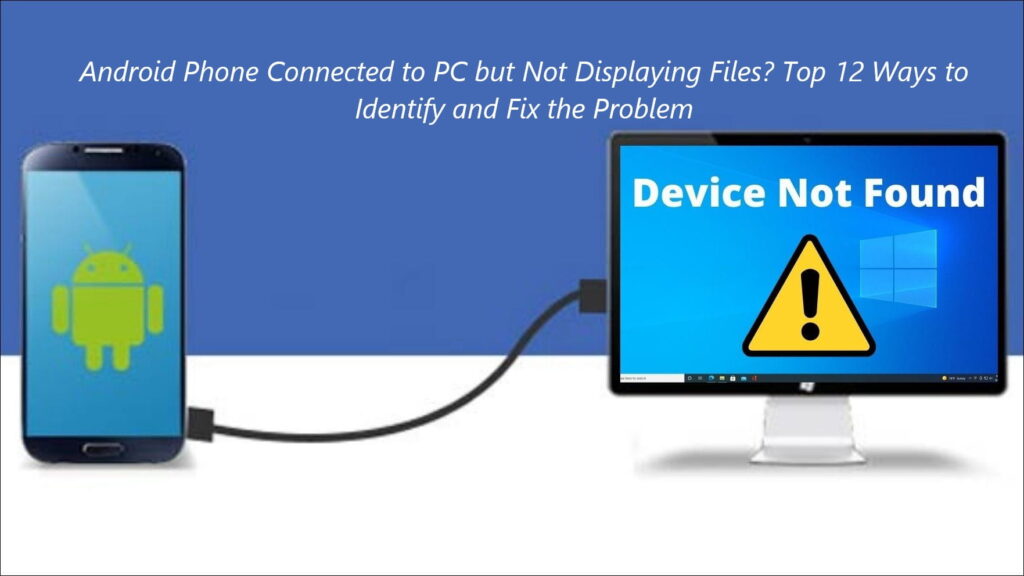

Android Phone Connected to PC but Not Showing Files? Top 12 Ways to Fix the Problem
You plug your Android phone into your Windows PC. The phone starts charging.
Windows makes the familiar USB connection sound and everything looks normal.
But when you open File Explorer there is nothing. The phone isn’t there.
Or Maybe Windows can see the phone, but when you open it, the folders are empty.
This is one of those annoying Android problems where the cable appears to be working, the phone is charging, but still a single photo or video can’t be copied. The good news is that the problem is the phone itself.
In many circumstances, the problem is basically that Android is using the USB connection for charging instead of file transfer, the phone hasn’t given Windows permission to access its data, or Windows is having trouble connecting with the phone.
In this topic we will cover the necessary steps to diagnose while Android Phone Connected to PC but Not Showing Files
and solve this problem.
1. Unlock Your Android Phone
First, unlock your Android phone.
This is important because Android may not allow your computer to access your files while the phone is locked.
After unlocking it, connect the USB cable again.
Wait a few seconds and look at your phone screen.
You may see a notification like:
“Charging this device via USB”
Tap that notification.
You should then see some USB options.
Choose:
File Transfer
On some phones, it may say:
Transferring files / Android Auto
The name can be different depending on your phone.
Now go back to your Windows computer and open:
File Explorer → This PC
Check if your phone appears.
2. Change USB from Charging to File Transfer
This is probably the first thing I would check.
When you connect your phone, Android may automatically use the USB connection for charging.
That means:
Phone is charging = Yes
but:
File transfer = No
To change it, connect the phone and pull down the notification panel.
Look for the USB notification.
Tap it and select:
File Transfer
3. Check for an “Allow Access” Message
Sometimes Android asks if you want to allow the computer to access your phone.
You may see a message similar to:
Allow access to phone data?
If you see this message, tap:
Allow
If you choose “Don’t allow”, Windows may not be able to open your phone’s files.
If you are not sure what you selected before, simply disconnect the cable and connect it again.
Keep your phone unlocked and watch the screen.
Samsung also recommends checking this permission when a Galaxy phone is not showing correctly on a computer.
4. Try a Different USB Cable
This one is easy to miss.
Not every USB cable can transfer files.
Some cables can charge a phone but cannot transfer data.
So your phone can be charging normally while Windows cannot see any files.
Try another cable.
The best option is the cable that came with your phone, if you still have it.
You can also use a cable that you already know works for data transfer.
If another cable fixes the problem, you have found the cause.
You do not need to change anything on your phone or computer.
5. Try Another USB Port
The cable may be fine.
The USB port on your computer could be the problem.
Disconnect the phone and try another USB port.
If you are using a desktop computer, try a USB port directly on the computer instead of a USB hub.
If your computer has both USB-A and USB-C ports, you can test another port too.
This is a simple test, but it can save you a lot of time.
6. Restart Your Phone and Computer
Sometimes the USB connection simply gets stuck.
There is no need to spend 30 minutes changing settings.
Try this first:
- Disconnect the phone.
- Restart your Android phone.
- Restart your Windows computer.
- Unlock the phone.
- Connect the USB cable again.
- Select File Transfer.
Now check File Explorer.
It sounds basic, but restarting both devices can fix USB connection problems.
7. Check “This PC” in Windows
After connecting the phone, open:
File Explorer → This PC
Your phone may appear there with its brand or model name.
For example, you might see the name of your phone instead of simply “Android.”
Click the phone.
You may then see:
Internal Storage
Open it.
Your camera photos are usually inside:
DCIM → Camera
Downloaded files are often inside:
Download
The exact folders can be different on different phones and apps.
8. Phone Shows Up but There Are No Files
This is slightly different.
Windows can see your phone, but the folders are empty.
First, check the phone.
Make sure:
USB → File Transfer
is selected.
Also make sure the phone is unlocked.
Then disconnect the cable and connect it again.
If Android asks for permission, tap Allow.
Wait a few seconds and open the phone again in File Explorer.
This fixes the problem on many phones.
9. Check Windows Device Manager
If Windows does not see your phone at all, take a look at Device Manager.
Right-click the Windows Start button.
Click:
Device Manager
Now look for things such as:
- Portable Devices
- Android Device
- USB devices
- Unknown Device
If you see a yellow warning symbol, Windows may have a problem with the device or its driver.
Do not immediately download drivers from a random website.
First try disconnecting and reconnecting the phone.
You can also restart Windows and check again.
If you use a Samsung phone, Samsung provides its own troubleshooting steps for reinstalling the device driver when the phone is not detected correctly.
10. You Do Not Normally Need USB Debugging
You may find websites telling you to turn on USB Debugging.
You usually don’t need it for normal file transfers.
If you simply want to copy your photos from your phone to your computer, you normally need:
USB → File Transfer
You do not need to turn on Developer Options just to copy files.
USB Debugging is mainly useful for developers and some advanced Android tools.
So don’t change it unless you actually need it.
11. Try Wireless File Transfer
If the USB connection refuses to work, you have another option.
You can transfer files wirelessly.
For example, Google’s Quick Share can be used to move files between supported Android devices and Windows PCs.
Microsoft also provides Phone Link and Link to Windows for supported Android phones.
This can be useful if:
- Your USB cable is bad.
- Your computer’s USB port is having problems.
- You only need to move a few files.
- You transfer files between the same phone and computer regularly.
For a large number of files, however, a good USB cable is often faster and easier.
12. Connect the Phone to Another Computer
This is one of the best tests.
If you have another computer available, connect your phone to it.
Now look at what happens.
If the phone works on the other computer
Your phone is probably fine.
The problem is most likely with your first computer.
It could be:
- Windows
- USB drivers
- USB port
- Security software
- USB settings
In order to solve the problem of Android Phone Connected to PC but Not Showing Files, you must follow the above steps.
Did you find this article useful? If so, then you can visit a number of our other useful articles too. It might be efficient for you as well.
Visit our Blog Page for more articles like this.